

What you can customize (all stages)
For every question or criterion you can:- Edit the wording
- Choose how it’s evaluated (scored vs pass/fail)
- Assign weight (how much it affects the overall score)
- Mark it as a dealbreaker (auto-disqualify if not met)
- Control follow-up behavior (voice/SMS)
- Reorder questions or criteria to control flow
Reordering and weights
- Reorder: Drag and drop questions or criteria to change the order candidates see. Put dealbreakers first to filter early; group related topics together.
- Weights: Higher weight = the question matters more in the final score. You don’t need to make everything high weight; many teams use the defaults. See How Scoring Works.
Resume Screening
Configure Required Qualifications (auto-disqualifiers) and Evaluation Criteria (scored items like relevance and experience). You can enforce a minimum score so only candidates who meet your threshold advance.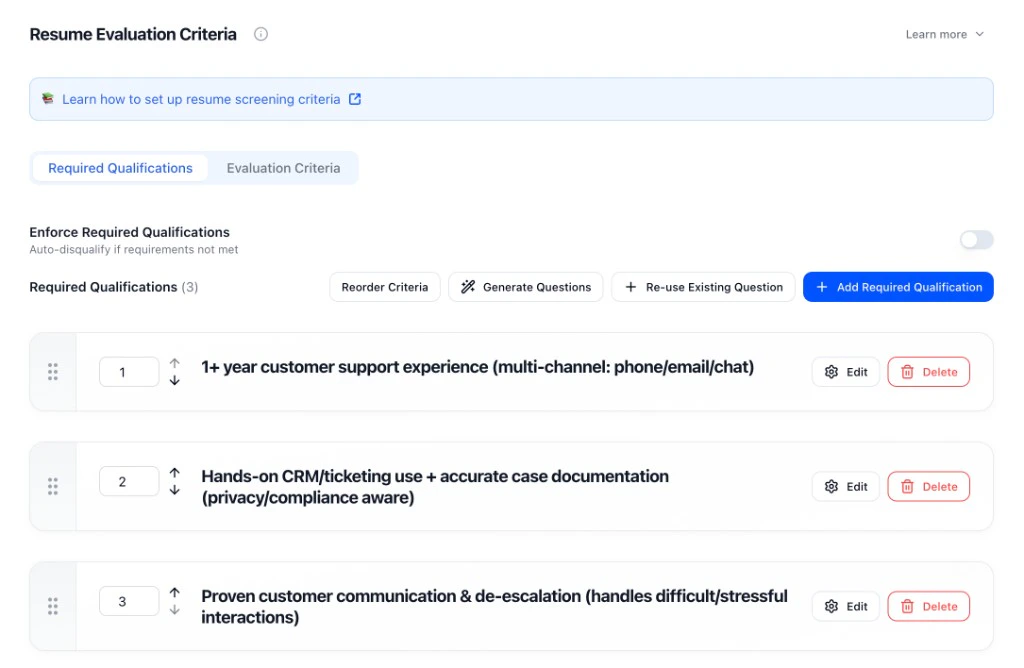
- Required Qualifications: Add must-haves (e.g. 1+ year support experience, CRM experience, communication skills). Toggle “Enforce Required Qualifications” to auto-disqualify when not met.
- Evaluation Criteria: Scored items for relevance, depth of experience, role fit.
- Reorder / Generate / Re-use: Reorder criteria, generate with AI, or re-use from another interviewer.
Application Form
Form questions collect structured answers and can enforce eligibility before candidates move on. Use Enforce Criteria so candidates who don’t meet requirements don’t advance.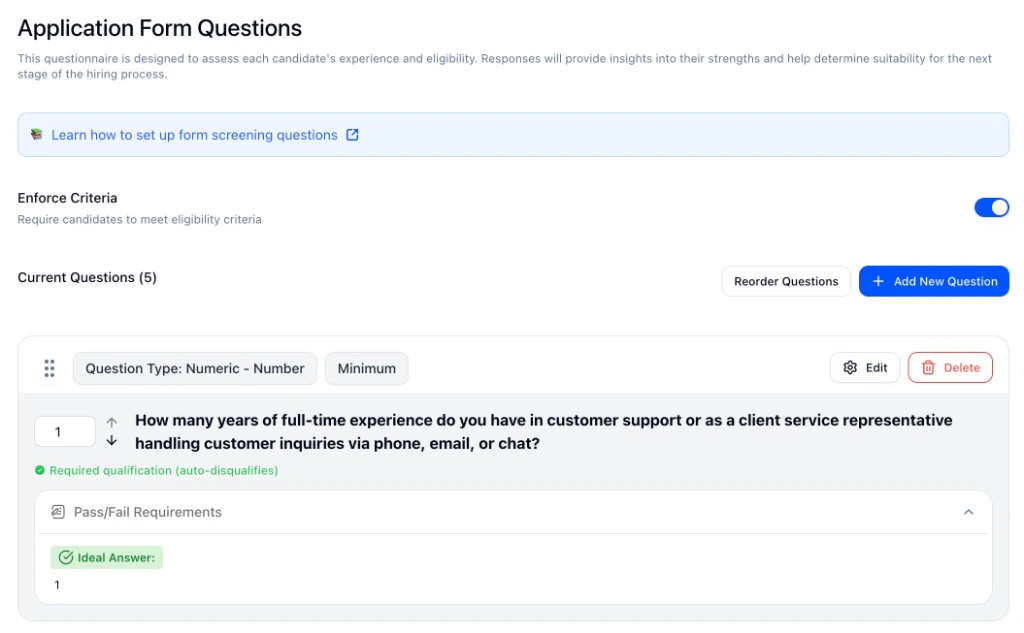
- Question types: Short answer, numeric (min/slider), multiple choice, date, file upload.
- Required qualification (auto-disqualifies): Mark questions as dealbreakers with pass/fail requirements (e.g. minimum years of experience, ideal answer “1”).
- Reorder / Add: Reorder questions or add new ones.
SMS Screening
SMS is built for quick eligibility checks. Use Enforce Required Qualifications so candidates who don’t meet your pass/fail answers are auto-disqualified.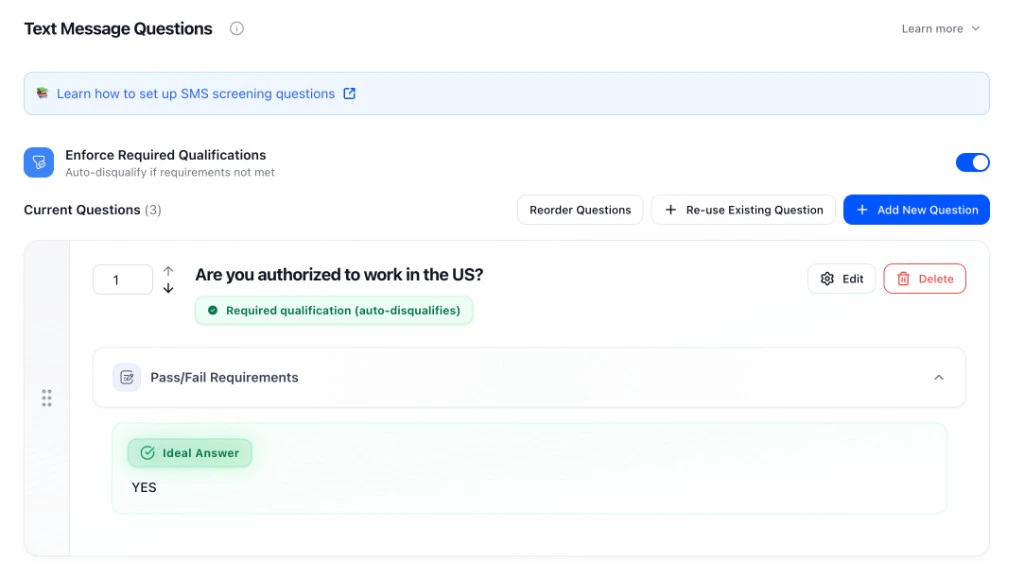
- Question types: Yes/no, numeric, pass/fail.
- Required qualification (auto-disqualifies): Set the ideal answer (e.g. “YES” for work authorization). Candidates who don’t match don’t advance.
- Reorder / Re-use / Add: Reorder, re-use existing questions, or add new ones.
Voice/Video Interview
For voice and video, you define evaluation criteria for each question: what a strong answer looks like (score of 5) and what a weak answer looks like (score of 1). Set weight and how many follow-ups the AI can ask.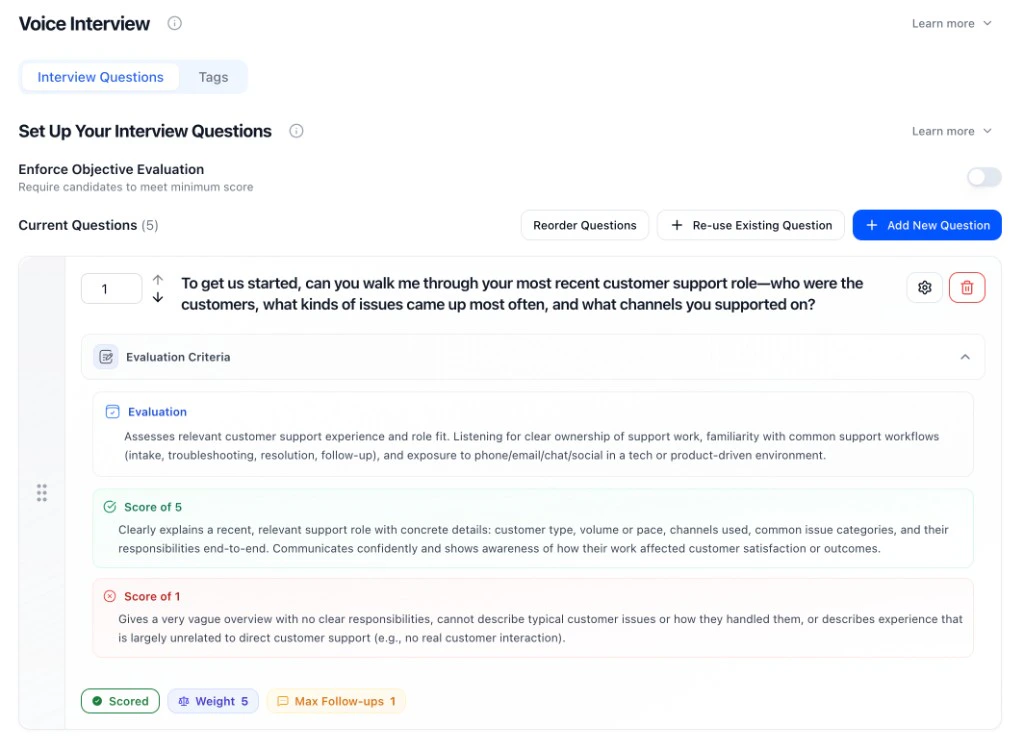
- Evaluation criteria: Describe what you’re listening for; define Score of 5 (strong) and Score of 1 (weak).
- Weight: How much the question affects the overall score (e.g. 1–10).
- Max follow-ups: How many follow-up questions the AI can ask to probe for more detail.
- Enforce Objective Evaluation: Optional: require candidates to meet a minimum score to pass.
- You can mix scored questions (1–5), structured (pass/fail, multiple choice), and informational (no score impact). See Question Library.
LLM Assessment
For LLM Assessment stages, configuration works differently — instead of setting questions and rubrics manually, you provide a task background and HeyMilo generates the full scenario, deliverable, and scoring rubric automatically.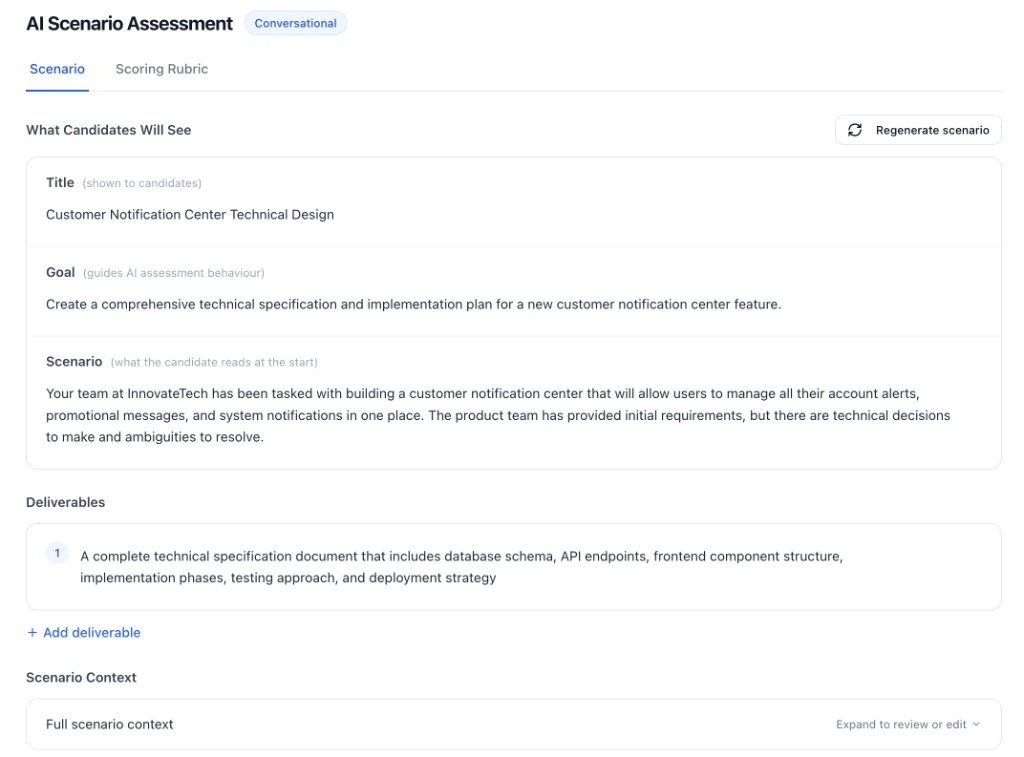
- Task background: Describe the task the candidate will work through. HeyMilo uses this plus the job description to generate the scenario.
- Assessment style: Standard (collaborative) or Test AI Error Detection (candidate identifies AI mistakes).
- Conversation behavior: Toggle whether the AI sends a greeting first and whether it invents missing details to keep the scenario flowing.
- Time limit and rounds: Set how long candidates have and how many back-and-forth exchanges before the assessment ends.
- Passing score: Optional threshold — candidates below this won’t advance.
Dealbreakers vs scoring
- Dealbreakers = eligibility (work authorization, certifications, availability, hard minimums). Use required qualifications / enforce criteria so candidates who don’t meet them don’t advance.
- Scoring = quality (judgment, communication, depth of experience). Use evaluation criteria and weights so stronger answers rank higher.
Other settings
- Tags (optional): Extract extra details from responses (e.g. years of experience, tools) without affecting the score. Tags appear in reports for filtering and review. See Interview Tags.
- Test before you launch: Run through as a candidate to check wording, follow-ups, and scoring before you activate.
- Multilingual Support: Languages and voices. Cheat Detection — Interview Integrity.
Settings tab
Open the Settings tab (next to Integrations and Analytics). What you can edit vs view: Editable- Root Level Configuration: Edit language, interviewer name; under Advanced: Days to Complete, Scheduling URL, Redirect URL; Additional Context (company overview, job overview, interview process, instructions).
- Workflow Steps: Click a step (e.g. Resume, Video Interview) to edit that step’s questions, evaluation, and Enabled Features (turn video or phone on/off for that step, tags). Phone and video are per step, not one global toggle.
- Communication Channels: Set email template group, phone/messaging.
- Customizations: Set design template group (branding).
- Advanced Settings: Turn Cheat Detection, Test Posting, Deployed, Allow SMS, Email Report to Candidate, and retakes on or off.
- Sourcing: See what’s assigned; configure in Sourcing.
- Job Description: Shown to candidates; edit the description where you created the posting.
- Agent Mascot: Name and status (e.g. Live) are shown; created/updated time and deadline (e.g. “6 days remaining”) are displayed here.
Next steps
- How Scoring Works — How scores are calculated and what appears on reports
- Question Library — Reusable questions and AI generation
- Reviewing Candidates — Use score reports to advance or decline