

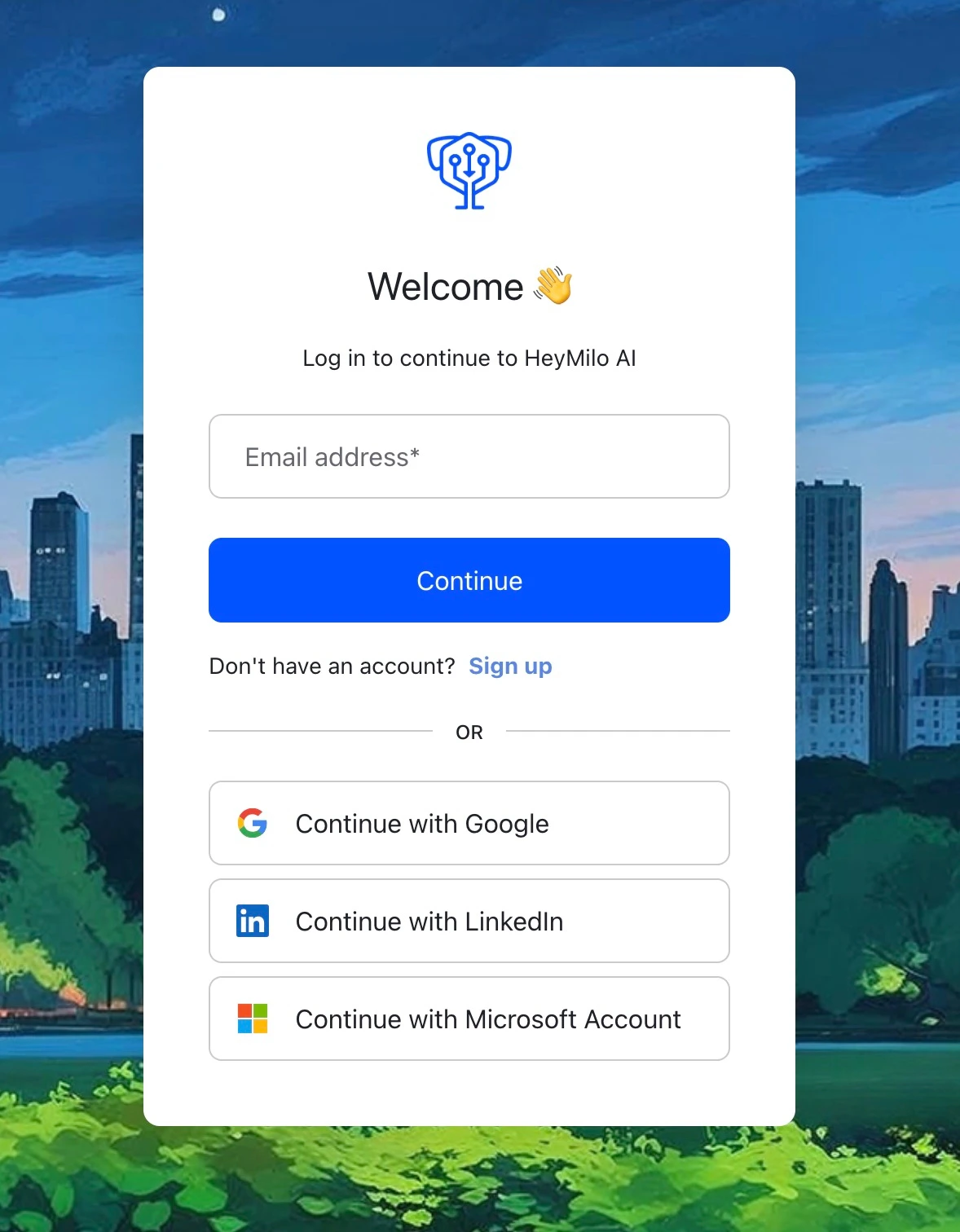
Log In (If You Already Have an Account)
Sign in with your work email using one of these methods:- Google Sign-In — Click “Sign in with Google” and select your work Google account. Fastest if your company uses Google Workspace.
- Email & Password — Enter your email and password. Forgot it? Click “Forgot password?” to reset via email.
- SSO (Single Sign-On) — Click “Sign in with SSO” and enter your company email. You’ll be redirected to your company’s identity provider.
Create Your Account (If You’re New)
- You’ll need an invitation from your team admin. Check your email (and spam) for an invite from HeyMilo — it contains a link to set up your account.
- Click the link in the email and follow the prompts to create your account.
If prompted, enter the onboarding key:
HELLO-COLD-34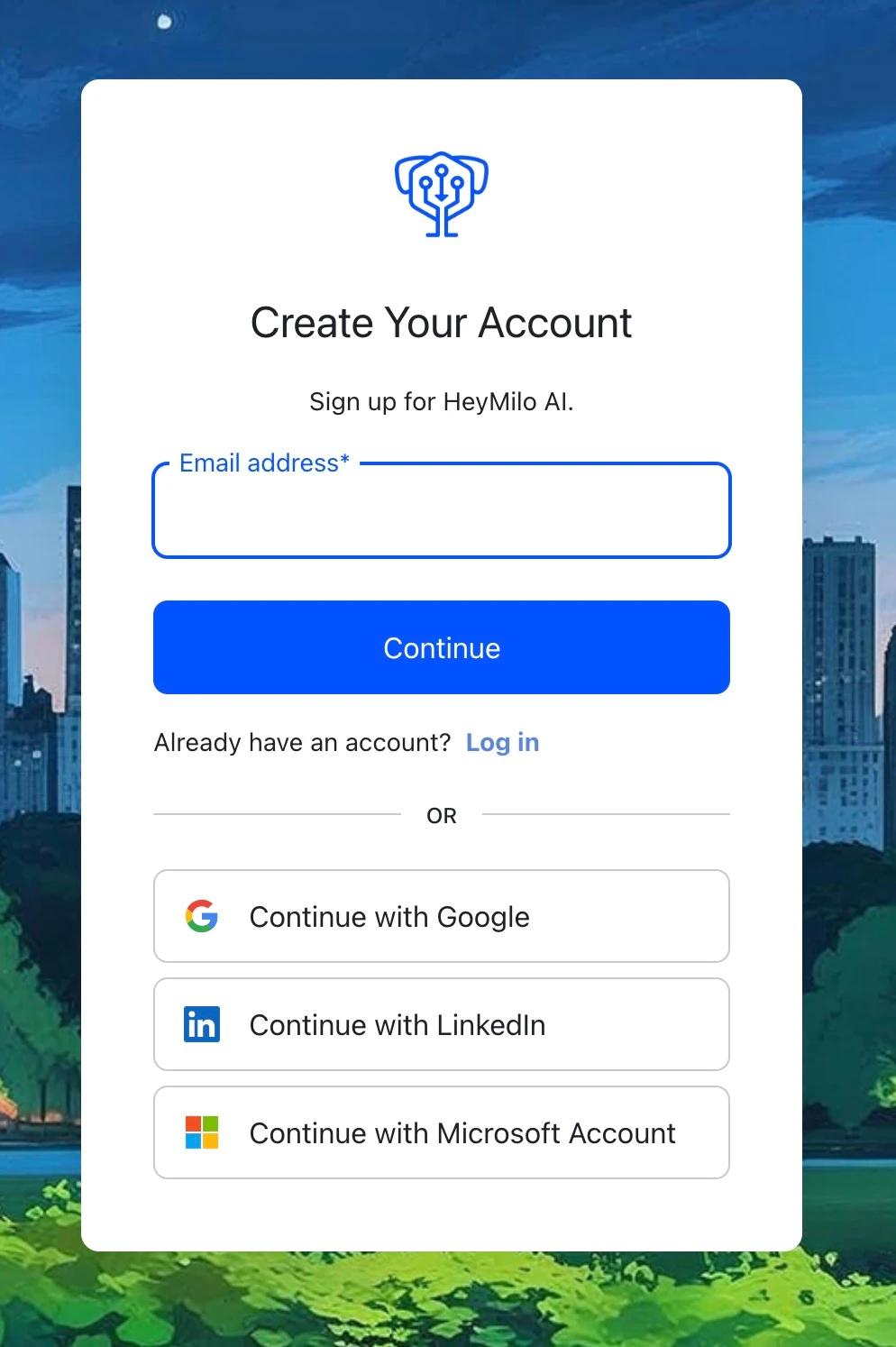
Troubleshooting Login Issues
“I never received an invitation email”- Check your spam/junk folder — invitation emails sometimes land there.
- Ask your team admin to resend the invitation from Settings > Team.
- Make sure you’re checking the correct email address (the one your admin used to invite you).
- Click “Forgot password?” on the login page.
- Enter your email address. You’ll receive a reset link within a few minutes.
- If the reset email doesn’t arrive, check spam or try again.
- Double-check the email address — it must match the one your admin used to invite you.
- If you recently changed your work email, ask your admin to update your account or send a new invitation.
- Make sure you’re selecting the correct Google account (your work email, not personal).
- Try clearing your browser cache or using an incognito/private window.
- If your company restricts third-party app access, ask your IT team to allow HeyMilo.
- You may not have the right permissions yet. Ask your team admin to check your role in Settings > Team.
- If you were just added, try refreshing the page or logging out and back in.