

Where to find them
Sidebar → Interviewers → Interview Templates — create, set default, use, view, edit, delete.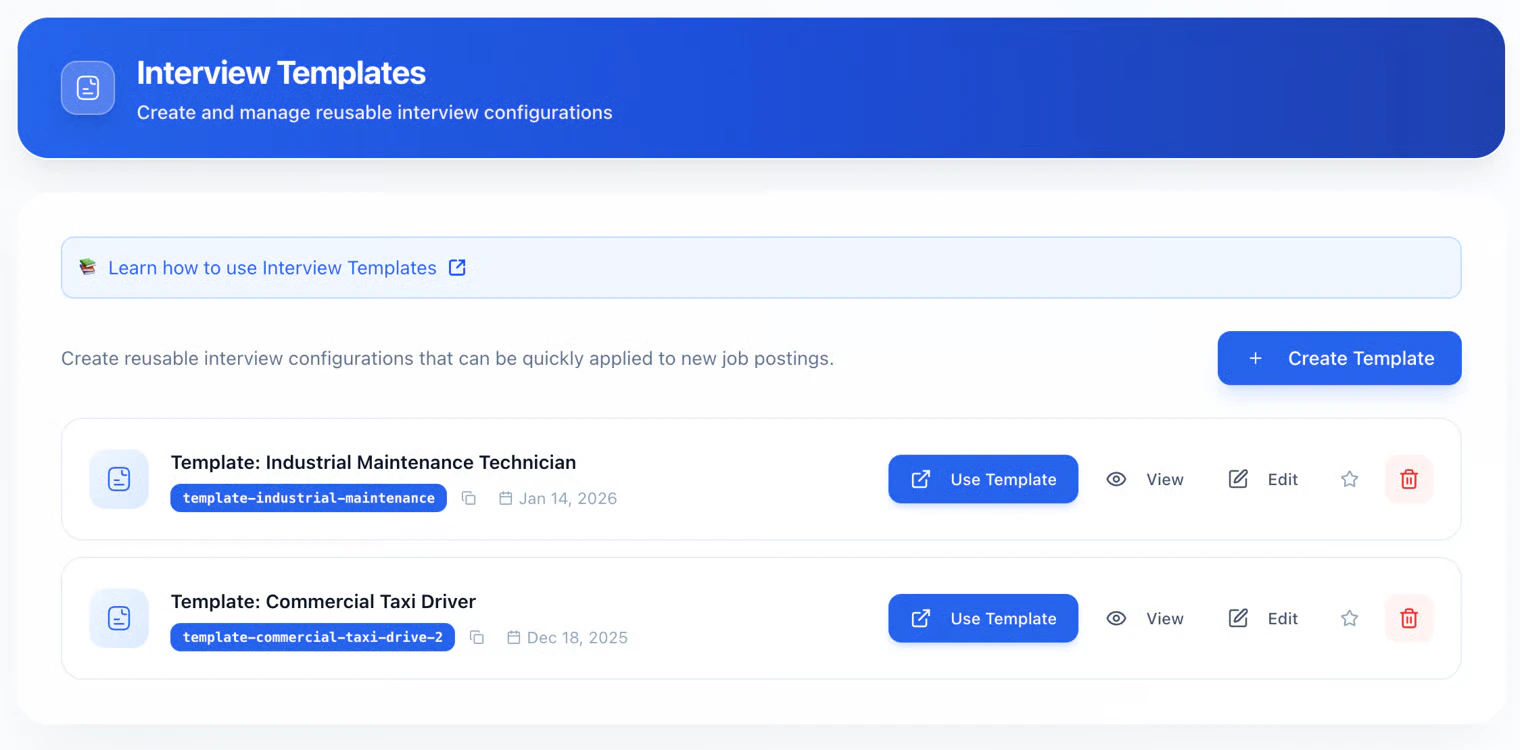
What a template includes
A template stores your interview setup, including:- Interview flow (e.g. form, resume, SMS, voice)
- Questions and scoring
- Qualification rules and tags
- Agent behavior and related settings (e.g. budget where your product exposes it)
- Evaluation and integrity defaults
Create a template
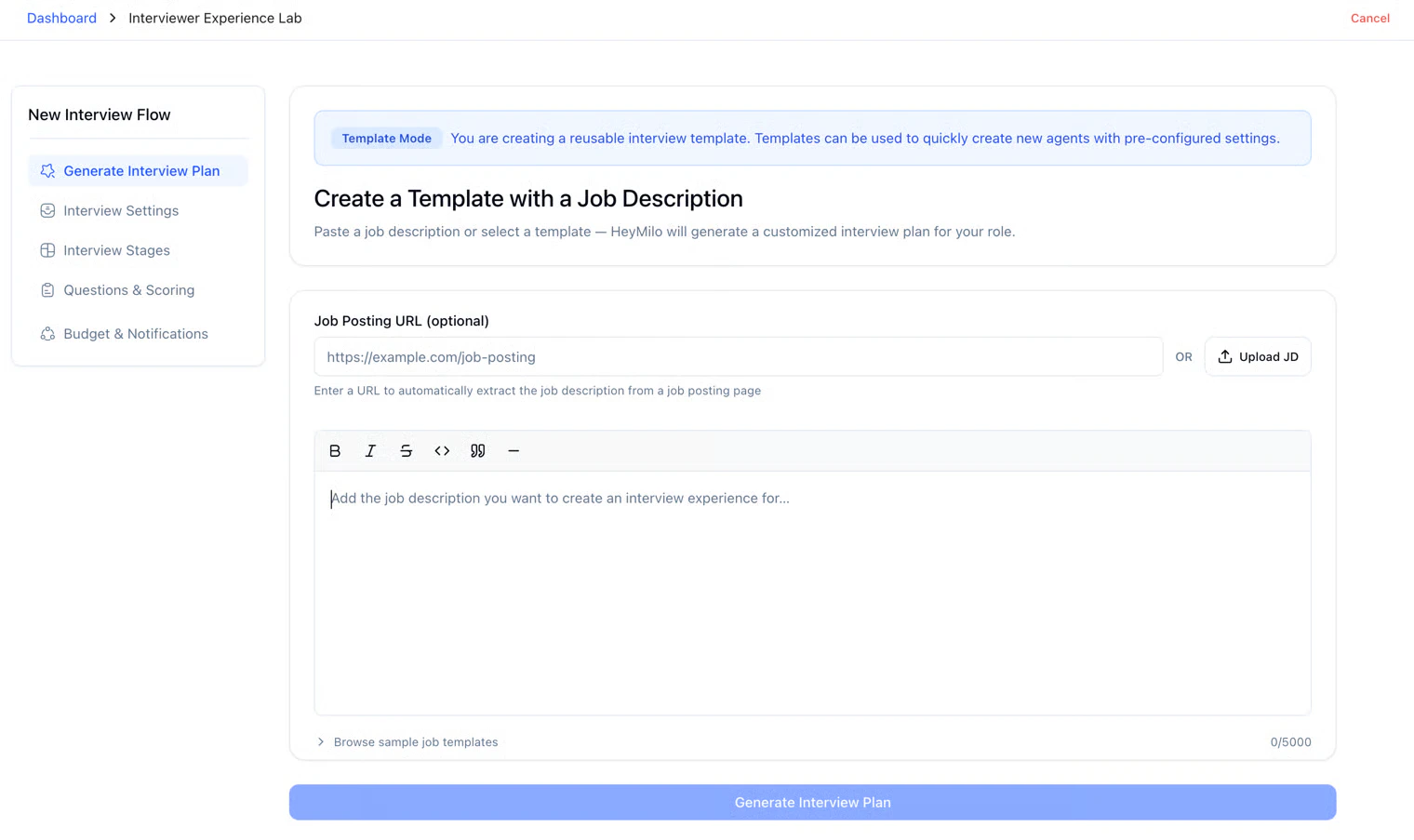
- Interviewers → Interview Templates → Create Template
- Complete the configuration flow (same idea as building an interviewer)
- Save — it’s stored as a template
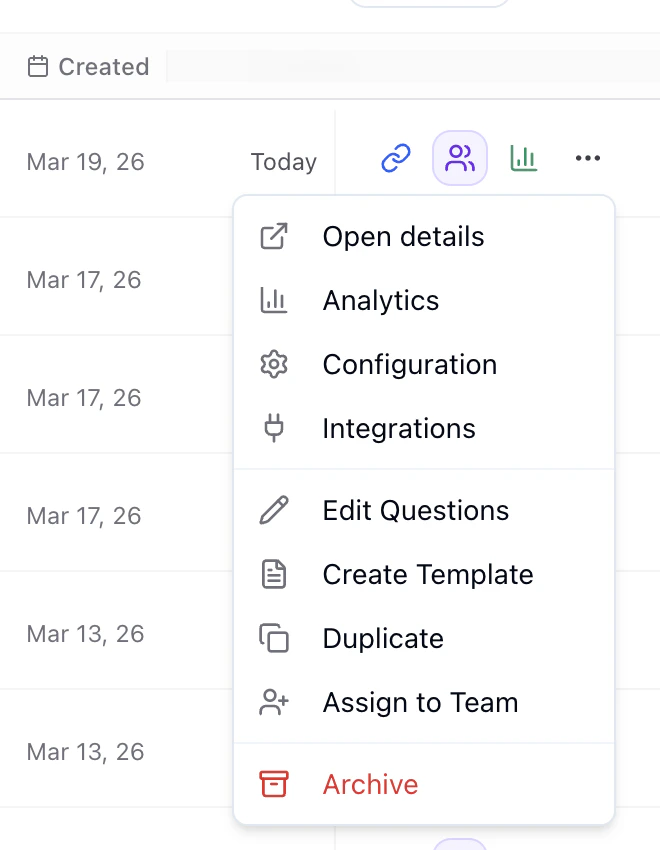
- Interviewers → pick an agent with the setup you want
- Create Template on that agent
- That configuration is saved as a new template
Default template
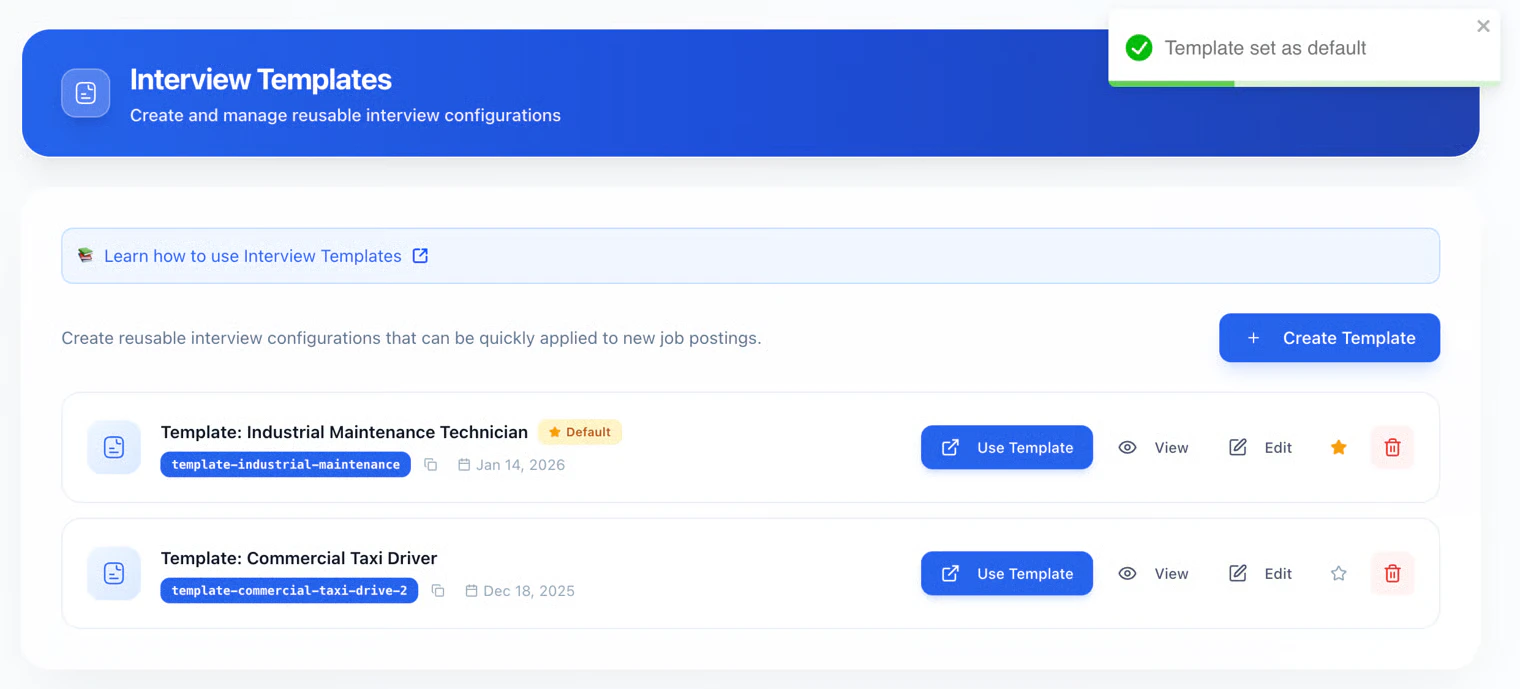
- New interviewer creation from the main flow can load that template’s settings automatically.
- Only one default at a time; choosing a new one clears the previous.
- Unset by clicking the star again on the current default.
Use a template
- Interviewers → Interview Templates
- Use Template on the one you want
- A new agent is created from that snapshot
- Adjust job-specific details, then finalize and activate
Manage templates

- Use Template: new agent from this template
- View: read-only full config
- Edit: change the template (only affects future agents created from it)
- Star: set / unset default
- Delete: permanent; agents already created from it keep working
Template codes
Each template has a unique code (e.g. for ATS/API, automation, or quick ID). Copy from the code badge in the UI when shown.Best practices
- Name by role + channel + purpose.
- Prefer a few role-specific templates over one vague catch-all.
- Test before making something the default.
- Refresh templates after hiring cycles so they match current standards.
FAQ
- Share across workspaces? Templates are usually workspace-only; recreate elsewhere if needed.
- How many templates? Typically no practical cap — use what you need.
- Duplicate a template? Use Template → tweak → save as a new template (or equivalent) so you don’t overwrite the original.